Non-Web Add/Drop
Non-Web Add/Drop
 Most of the courses are web-enabled courses which students can add/drop on AIMS.
To add/drop courses that are non-web-enabled or to bypass the registration restrictions of web-enabled courses, students may seek the course-offering academic units’ permission via an electronic form on AIMS.
- Students can view the application status in the form and receive notification email of the updated course registration record.
- Request which is not reflected in the student's schedule or course registration record means the request has not been approved by the academic unit. Check your course registration records regularly.
- Request can be cancelled if it is still in "Pending" status. The cancelled request is irrevocable. Submit a new request to replace the cancelled one if necessary.
Steps
Text Version
|
Getting Started
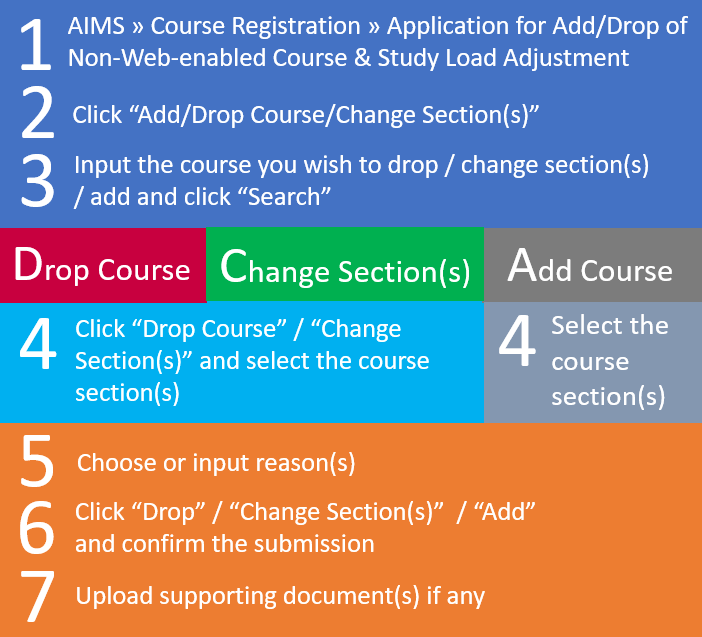
- Click "Application for Add/Drop of Non-Web-enabled Course & Study Load Adjustment"
- Your student particulars and the courses already registered in your current schedule will be displayed.
- Click the "Add/Drop Course/Change Section(s)" button at the bottom.
Drop Course
- Input the registered course you wish to drop in the box and then click “Search”.
- Click "Drop Course".
- Check the box(es) next to the course section(s) you wish to drop.
- Choose a reason from the drop-down box. If "Other Reasons",is chosen, please provide details in the textbox below.
- Click the "Drop" button to submit the request and confirm the submission in the pop-up window.
- You can also upload supporting document(s), if any, to support your drop course request.
- The Drop course request can be cancelled if it is still in "Pending" status. As the cancelled request is irrevocable, please submit a new request to replace the cancelled request if necessary.
- After course-offering Academic Unit makes its decision, you will be notified via email and you may also check the status on AIMS.
Change Section(s)
- Input the registered course you wish to change section(s) in the box and then click “Search”.
- Click "Change Section(s)".
- Check the box(es) next to the course section(s) you wish to change to.
- Choose a reason from the drop-down box. If "Other Reasons" is chosen, please provide details in the textbox below.
- Click the "Change Section(s)" button to submit the request and confirm the submission in the pop-up window.
- You can also upload supporting document(s), if any, to support your change section(s) request.
- The Change section(s) request can be cancelled if it is still in "Pending" status. As the cancelled request is irrevocable, please submit a new request to replace the cancelled request if necessary.
- After course-offering Academic Unit makes its decision, you will be notified via email and you may also check the status on AIMS.
- Please observe the timetable of the course section(s) requested and ensure that they do not clash with your personal class schedule.
Add Course
- Input the course you wish to add in the box and then click “Search”.
- Check the box(es) next to the course section(s) you wish to add.
- Choose a reason from the drop-down box. If "Other Reasons" is chosen, please provide details in the textbox below.
- Click the “Add” button to submit the request and confirm the submission in the pop-up window.
- You can also upload supporting document(s), if any, to support your add course request.
- The Add course request can be cancelled if it is still in "Pending" status. As the cancelled request is irrevocable, please submit a new request to replace the cancelled request if necessary.
- After course-offering Academic Unit makes its decision, you will be notified via email and you may also check the status on AIMS.
- Please observe the timetable of the courses requested and ensure that they do not clash with each other or your personal class schedule.
- Please ensure the potential study load stays in the range of the maximum and minimum study load as stipulated by the University if all add/drop course requests are approved. You may submit application for adjustment of study load if necessary.
- When you have finished, make sure that you log out AIMS before leaving your terminal.
Notes:
- All the requests can be cancelled if it is still in "Pending" status. As the cancelled request is irrevocable, please submit a new request to replace the cancelled request if necessary.
- After course-offering Academic Unit makes its decision, you will be notified via email and you may also check the status on AIMS.
- Please observe the timetable of the course section(s) requested and ensure that they do not clash with your personal class schedule.
- When you have finished, make sure that you log out AIMS before leaving your terminal.
- For Add course request, please ensure the study load stays in the range of the maximum and minimum study load as stipulated by the University if the add/drop course requests are approved. If applicable, submit application for adjustment of study load.
|
Error Messages
- The course is not offered in this semester/term.
- The course being searched is invalid or not offered in the semester/term.
- Application for this course is not allowed. Please check the course information in master class schedule or contact the Course-Offering Department directly.
- Some Course-Offering Departments do not accept applications for certain course via the system. Students may approach the Course-Offering Departments for enquiry.
- For web-enabled courses with registration restrictions, applications are NOT allowed before the last web registration period.
- Application for non GE English course is not allowed.
- ? Except GE English courses, GE courses in areas 1-3 and GE1501 Chinese Civilisation are web-enabled without any registration restrictions. Students can register these courses directly during the web registration period.
- Please select the course section(s).
- Before submitting the application, students should select the correct course section(s) which they intended to add/drop/change section(s).
- Missing lecture/tutorial/laboratory/seminar component. Please select a lecture/tutorial/laboratory/seminar section.
- For courses with more than one type of component, e.g. Lecture + Tutorial + Laboratory, students should select all the required components of the course.
- The selected CRNs are not in the same section group.
- When selecting the course section(s) with more than one type of component, all the required components should be in the same section group, e.g. a CA1 lecture has to be selected along with a TA1 or TA2 tutorial.
- Duplicated lecture/ tutorial/ laboratory/ seminar sections. Please select one lecture/ tutorial/ laboratory/ seminar only.
- When selecting the course section(s), students should select ONE section from each component type, e.g. select 1 lecture section only.
- The selected course is web-enabled and cannot be dropped via this function. Please drop the course directly using the web add/drop function.
- For registered courses which are web-enabled, students can drop the course directly online without Course-Offering Department's approval.
- The selected course section(s) are already registered. Please select the course section(s) you would like to change to.
- When changing the course section(s), students should select the target course section(s) that they would like to change.
- The registered and the selected course section(s) are web-enabled and cannot be changed via this function. Please change the course section(s) directly using the web add/drop function.
- For registered courses which are web-enabled, such as GE English courses, students can change the course section(s) directly online without Course-Offering Department's approval.
- Application for this course has already been submitted.
- Students cannot submit application of the same course for more than once. However, if the application is still in “Pending” status, students can cancel it and submit an application for the same course again.